
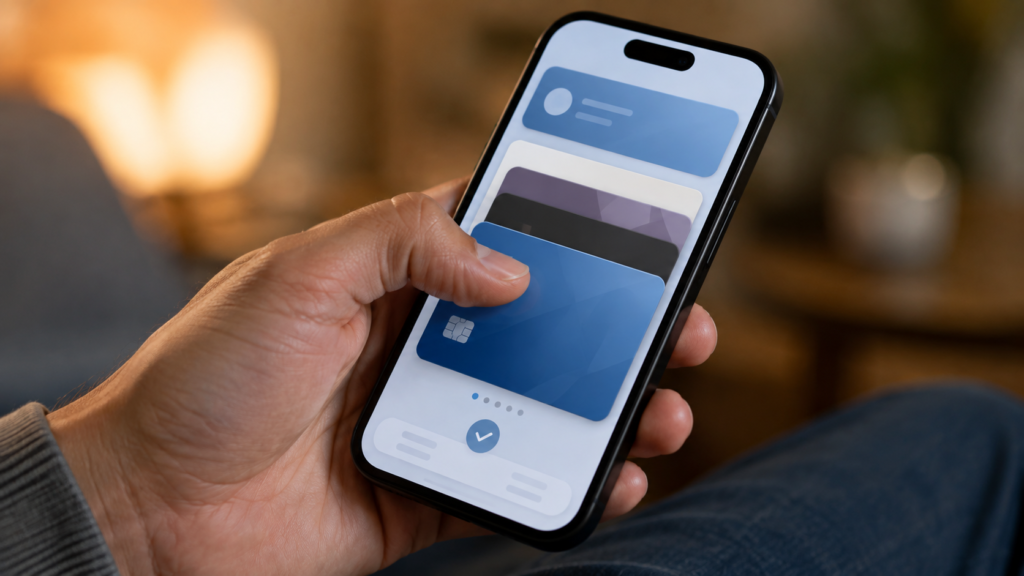
Is Google Wallet safe? That’s the single most-asked question about it, so it’s worth answering first: yes. This guide covers Google Wallet’s safety in more depth, then walks through adding every kind of card, pass, and ticket it supports, the transit cards that trip people up, how it compares to Apple Wallet and Samsung Wallet, and fixes for the errors people run into most.
Is Google Wallet Safe?
Yes — Google Wallet is safe for everyday use. It replaces your actual card number with a device-specific token for every transaction, so your real card details never reach the merchant. On top of that, Google Wallet requires a screen lock (PIN, pattern, fingerprint, or face) to open the app, meets PCI DSS Level 1 compliance — the same standard banks use — and includes purchase protection and fraud monitoring on flagged transactions.
If your phone is lost or stolen, you can remotely lock or wipe your device — and by extension your wallet — through Find My Device, without needing to touch the phone itself.
One nuance worth knowing: safety depends on what’s stored. A card added to Google Wallet is protected the same way your bank protects that card. A cash balance held directly in Google Wallet (the “Google Pay balance” feature, covered below) generally isn’t FDIC-insured the way a bank deposit is, so it’s not the place to park large amounts of money long-term.
How to Add a Credit or Debit Card to Google Wallet
Open Google Wallet, tap the + icon, choose Payment card, and either scan the card with your camera or enter the number manually. Your bank verifies it — usually through a text code or a prompt inside the bank’s own app — and it’s ready to use.
A newer option skips manual entry entirely: with a recent Google Wallet update, some card issuers let you add a card straight from their own banking app, sending the details to Wallet without you typing anything.
Adding Gift Cards to Google Wallet
Google Wallet treats two kinds of gift cards differently, and mixing them up is the most common reason a gift card won’t add:
- Network-branded cards — if the gift card carries a Visa or Mastercard logo, add it the same way you’d add any debit card: Add to Wallet > Payment card > New credit or debit card. Don’t use the “Gift card” option for these.
- Merchant-specific cards — for a retailer’s own loyalty or gift balance, use the dedicated Gift card option and search for the merchant by name. If it doesn’t appear in that search, the merchant hasn’t set up Wallet integration yet, and you can’t add it manually.
Most Visa and Mastercard gift cards issued from March 2025 onward support this; older cards may not.
Adding Boarding Passes and Event Tickets
Most airlines and ticket platforms email an “Add to Google Wallet” link once you’ve checked in or bought tickets — tap it, and the pass saves straight into the app. Tickets bought through Ticketmaster generally add the same way, either through a link in your confirmation email or directly inside the Ticketmaster app.
To move a ticket you’ve already added — say, you’re sending someone else to the show — look for a Share or Transfer option on the pass itself inside Wallet. Not every ticket supports transferring; that depends on the venue or platform that issued it, not on Google Wallet.
Adding Transit Cards to Google Wallet
Google Wallet supports a growing list of transit cards, so you can tap your phone at the turnstile instead of carrying a separate card: Clipper (San Francisco Bay Area), Suica (Japan), OMNY (New York), ORCA (Seattle), HOP (Portland), and a number of other regional systems. Search for your transit system under Add to Wallet > Transit card; if it’s supported, you can either link an existing physical card or set up a new virtual one.
The most common transit-card headache is a “something went wrong” error while adding a Clipper or Clipper START card. That’s almost always one of three things: a temporary sync issue with the transit agency’s own servers (retry after a few minutes), an existing physical Clipper card that needs unlinking from its old account first, or an outdated Wallet app version. Updating the app and retrying clears it in most cases; if it persists, Clipper’s own support — not Google’s — usually has to unstick it, since the card data lives on their system.
Linking PayPal, Venmo, Cash App, Afterpay, and Wise
Cash App, Venmo, PayPal, and Wise all issue their own debit card (physical or virtual), and each adds to Google Wallet exactly the way a bank card does — through Add to Wallet > Payment card. There’s no separate “Venmo” or “Cash App” button inside Wallet; you’re just adding their card like any other Visa or Mastercard.
Afterpay works differently: instead of a card you preload, it generates a single-use virtual card for each individual purchase, valid only for that transaction. Adding it to Google Wallet happens inside the Afterpay app at checkout, not through Wallet’s own “add a card” flow.
Adding and Sending Money With Google Wallet
Google Wallet can hold an actual cash balance — separate from any card — through the Google Pay balance feature, available in the US. To add money, open Wallet, go to your balance, tap Add money, and pull funds from a linked bank account (usually free, a few business days) or a debit card (small fee, instant). That balance pays in stores, in apps, or online anywhere Google Pay is accepted, and you can send it directly to another Google Pay user or transfer it back to your bank at any time.
As of August 2026, Google also opened a version of this for kids: parents can set up a supervised balance for a child’s Google Account through Family Link, fund it, set a daily spending limit, and monitor transactions — but that balance is deliberately restricted to in-store, tap-to-pay purchases only. It can’t be used online or in apps.
Digital IDs, Business Cards, and Other Passes
Beyond payment cards, Google Wallet can also hold:
- A digital driver’s license or state ID, in states that support it
- NFC-based digital keys for supported cars and, in some cases, smart locks
- Loyalty cards, coupons, and offers from participating retailers
- A digital business card — Google Wallet doesn’t generate these natively the way Apple Wallet does; you create one through a third-party card service (Uniqode, MySignature, and similar tools) and add it to Wallet as a pass, the same way you’d add a boarding pass
Can You View Your Full Card Number in Google Wallet?
No. Once a card is added, Google Wallet only shows the last four digits of a virtual device account number, not your actual card number. That’s intentional — the real number is tokenized and never has to leave your bank’s systems. If you genuinely need your full card number, check the physical card itself or log into your bank’s app; Google Wallet was built specifically so that number doesn’t need to be visible or transmitted anywhere.
Google Wallet vs. Apple Wallet vs. Samsung Wallet
| Feature | Google Wallet | Apple Wallet | Samsung Wallet |
| Works on | Android phones/watches | iPhone, Apple Watch | Samsung Galaxy phones/watches |
| Cash balance (P2P) | Yes — Google Pay balance (US) | No native balance (Apple Cash is separate) | No native balance |
| Transit cards | Wide list: Clipper, Suica, OMNY, ORCA, HOP, more | Wide list, largely overlapping | Narrower, growing list |
| Digital ID / driver’s license | Yes, select US states | Yes, select US states | Limited availability |
| Digital business cards | Third-party services only | Native Contact Card support | Third-party services only |
| Cross-wallet transfers | No direct wallet-to-wallet send — route through a linked bank account instead | Same limitation | Same limitation |
The practical takeaway: which one to use is mostly decided by your phone, not by features — an iPhone owner isn’t installing Google Wallet as their main tap-to-pay app, and vice versa. The one real cross-shopping decision is Samsung owners choosing between Samsung Wallet (preinstalled, default) and Google Wallet (broader transit-card support in some regions) as their default NFC payment app.
Where You Can Use Google Wallet
Acceptance keeps expanding. The newest example: Walmart, long one of the biggest holdouts against any tap-to-pay wallet, began rolling out in-store support for Google Pay (and Apple Pay) at select stores and Sam’s Club locations in late August 2026, with a plan to cover all roughly 4,600 US locations by the end of the year. Before this, Walmart only accepted its own Walmart Pay and the OnePay wallet in-store.
As a general rule, anywhere you see the contactless payment symbol at checkout, Google Wallet works. If a specific retailer isn’t mentioned here, look for that symbol at the terminal, or check the retailer’s own payment page — acceptance changes often enough that a hard list goes stale fast.
Common Google Wallet Problems and Fixes
- Can’t add a card — usually the card issuer hasn’t enabled Wallet support yet, or the card type isn’t eligible (some prepaid and virtual-only cards aren’t). Confirm with the issuer before troubleshooting further on Google’s side.
- Turning off Google Wallet — you can’t fully “disable” the app, but you can remove all cards and passes, and turn off tap-to-pay specifically in the app’s payment settings if you just want to stop using it for purchases.
- Does Google Wallet work without internet? — in-store tap-to-pay works over NFC even without a live connection, since the token needed for that transaction is cached on your device. Adding a new card, checking your balance, or anything else inside the app does need internet.
- “Google Wallet is not available in your country” — this means Google hasn’t rolled out full Wallet support (or specific features like the cash balance) to your region yet. It’s a regional availability limit, not an account problem, and it changes as Google expands coverage.
- Updating a card’s expiration date — Wallet usually pulls updated expiration dates automatically from your bank; if it doesn’t, remove the card and re-add it to refresh the details.
- Adding Google Wallet to your home or lock screen — on most Android phones, long-press the home screen, tap Widgets, and add the Google Wallet widget for one-tap access without opening the app.
- Google Wallet on Samsung phones — Samsung phones ship with Samsung Wallet as the default tap-to-pay app, but you can install Google Wallet alongside it and set it as your default payment app in your phone’s NFC settings.
- Google Wallet on Fitbit — newer Fitbit devices support Google Wallet directly for tap-to-pay from your wrist, set up through the Fitbit app.
What’s “Gravy Pass” in Google Wallet?
Gravy Pass isn’t a Google feature — it’s a third-party rewards program, run by a company called Atar Growth, that you add to Google Wallet or Apple Wallet as a pass, the same way you’d add a loyalty card. It works like an ad-based rewards program: you complete “missions,” usually installing and trying mobile games or apps, and earn points redeemable for gift cards.
Worth knowing before you use it: a fair number of posts in Google’s own Wallet support community report payout and redemption problems with Gravy Pass specifically. That doesn’t automatically mean it’s a scam, but it isn’t run by Google — if a Gravy Pass reward hasn’t paid out, that’s a Gravy Pass/Atar Growth support issue, not something Google Wallet itself can fix.
Google Wallet Alternatives
If Google Wallet isn’t available in your country, isn’t supported on your device, or you just want to compare, the main alternatives are Apple Wallet (iPhone), Samsung Wallet (Samsung Galaxy phones), and PayPal, which works across both platforms and adds its own balance and P2P features on top of card storage.
Frequently Asked Questions
Is Google Wallet safe?
Yes. It uses tokenization, requires a screen lock or biometric to open, meets PCI DSS Level 1 standards, and includes fraud monitoring. Cash balances aren’t FDIC-insured, but cards stored in Wallet are protected the same way your bank protects them.
Does Google Wallet work without internet?
In-store tap-to-pay works over NFC without a live connection, since the transaction token is cached on your phone. Everything else inside the app — adding cards, checking balances — needs internet.
Can I add my Apple Card to Google Wallet?
No. Apple Card is built to work exclusively through Apple Pay and Apple’s Secure Element — it isn’t transferable to Google Wallet or any Android device.
What’s the difference between Google Wallet and Google Pay?
They’re effectively the same product now — Google merged Google Pay’s payment features into the Google Wallet app. “Google Pay” still shows up as the name for some backend features, like the Google Pay balance.
Why can’t I add my card to Google Wallet?
Usually because your specific card issuer hasn’t enabled Google Wallet support for that card type, or it’s a prepaid/virtual card that’s excluded. Check with your card issuer directly — it’s rarely a Google Wallet-side problem.
Is Google Wallet available everywhere?
No. Core wallet features are limited to specific countries Google has rolled out support to, and some features — like the cash balance — are US-only even where the app itself works. Coverage expands over time.
Bottom Line
For nearly everything people worry about with Google Wallet — safety, whether a specific card or transit pass will work, why an error is happening — the answer usually comes down to one of two things: either it’s working exactly as designed (tokenization hiding your real card number is a feature, not a bug), or the holdup is on the card issuer’s or transit agency’s side, not Google’s. Start troubleshooting there before assuming Wallet itself is broken


Pingback: Digital Wallet News 2026: Updates, Safety & How-To Guide