The best graphics settings for Warzone on PC are not simply the lowest possible settings. A competitive setup should give you high and stable FPS, clear enemy visibility, low input latency, and enough visual quality to recognize players and objects at distance.
For most gaming PCs, a good starting point is 100% render resolution, a custom low-to-medium graphics profile, moderate texture quality, reduced shadows and effects, motion blur disabled, V-Sync disabled, and an upscaling mode chosen according to your GPU and resolution.
Your ideal settings still depend on your graphics card, processor, VRAM, monitor resolution, and refresh rate. Use the settings below as a balanced competitive baseline, then make small adjustments for your hardware.
Best Warzone Graphics Settings at a Glance
| Setting | Recommended |
|---|---|
| Display Mode | Fullscreen Exclusive |
| Screen Refresh Rate | Highest available |
| V-Sync | Off |
| Custom Frame Rate Limit | Match your performance/monitor |
| Render Resolution | 100 |
| Dynamic Resolution | Off |
| VRAM Scale Target | Around 80% |
| Texture Resolution | Normal |
| Texture Filter Anisotropic | Normal/High |
| Shadow Quality | Low/Normal |
| Screen Space Shadows | Off or Low |
| Screen Space Reflections | Off |
| Particle Quality | Low |
| Volumetric Quality | Low |
| Depth of Field | Off |
| World Motion Blur | Off |
| Weapon Motion Blur | Off |
| Film Grain | 0 |
| Ray Tracing | Off |
| NVIDIA Reflex | On + Boost for supported NVIDIA GPUs |
| Upscaling | DLSS/FSR according to GPU and target FPS |
These settings prioritize competitive visibility and consistent performance rather than maximum visual quality.
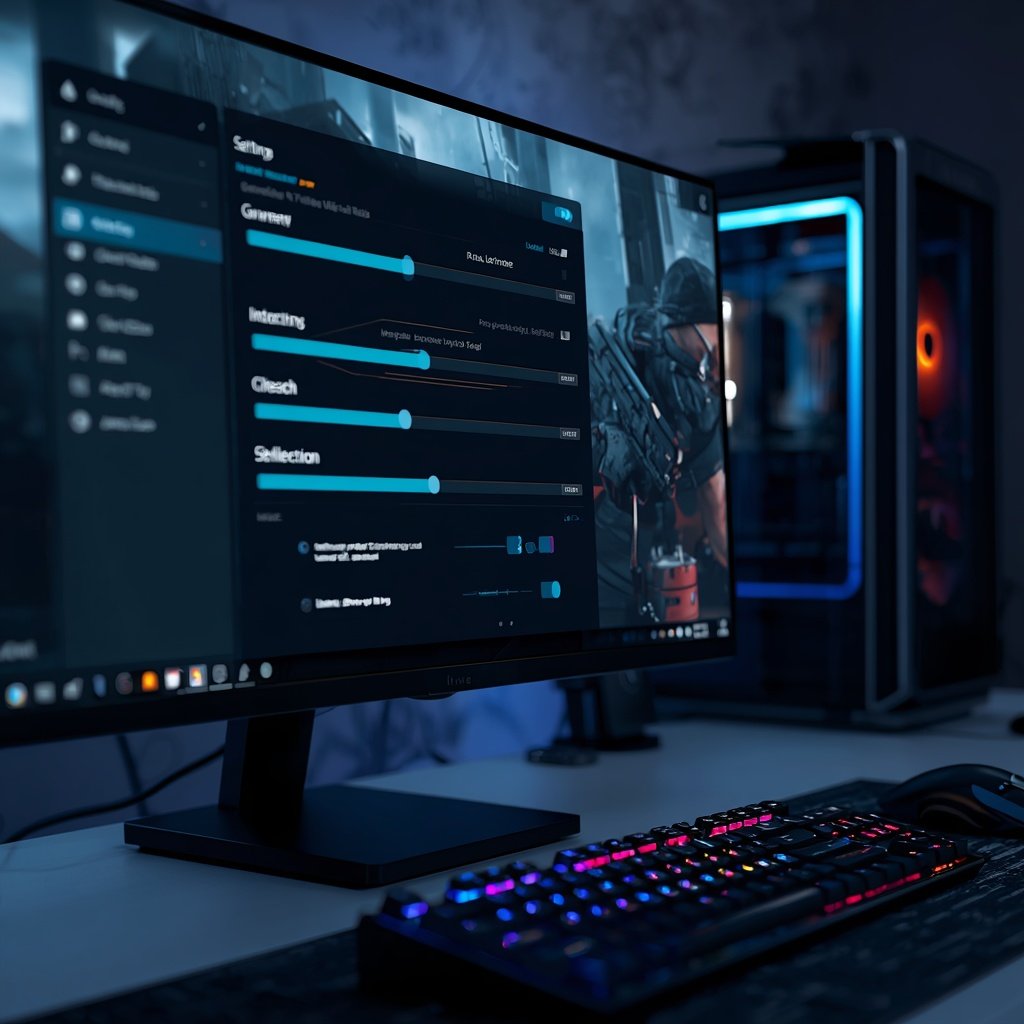
1. Display Settings
Start with the display section because these options can affect responsiveness before you even change individual graphics settings.
Display Mode: Fullscreen Exclusive
Use Fullscreen Exclusive when it is available and stable on your system.
It gives the game direct control of the display and is a sensible choice for competitive play. If you experience crashes, compatibility problems, or unusual behavior, Borderless can be used as an alternative.
Screen Refresh Rate: Highest Available
Set the refresh rate to the highest option supported by your monitor.
For example:
- 120Hz monitor → 120Hz
- 144Hz monitor → 144Hz
- 165Hz monitor → 165Hz
- 240Hz monitor → 240Hz
- 360Hz monitor → 360Hz
A higher refresh rate is useful only when your PC can produce enough frames to take advantage of it.
V-Sync: Off
For competitive Warzone, leave V-Sync Off.
V-Sync can introduce additional latency because it synchronizes frame delivery with the monitor’s refresh cycle. If you use G-Sync or FreeSync, configure adaptive sync separately rather than relying on traditional V-Sync inside the game.
Custom Frame Rate Limit
Do not automatically chase an extremely high FPS number.
A stable frame rate is often more useful than a fluctuating counter that occasionally reaches a much higher peak.
If your PC can comfortably maintain 160 FPS, for example, a sensible cap around that level can produce more consistent frame delivery than allowing the game to constantly bounce between 130 and 200 FPS.
2. Render Resolution and Upscaling
This is one of the most important parts of the Warzone graphics menu.
Render Resolution: 100
Start at 100% render resolution.
This keeps the game rendering at the resolution you selected instead of reducing internal resolution unnecessarily.
If your GPU cannot maintain the FPS you want, use an appropriate upscaling technology rather than immediately dropping render resolution to a very low percentage.
Dynamic Resolution: Off
For a competitive setup, start with Dynamic Resolution Off.
Dynamic resolution changes the internal rendering resolution to maintain a target frame rate. While this can help weaker hardware, it can also make image clarity inconsistent during demanding moments.
If your priority is a stable image for spotting enemies, fixed rendering plus sensible upscaling is usually easier to control.
DLSS
If you have a supported NVIDIA RTX GPU, DLSS can be useful when native rendering is too demanding.
A sensible starting point is:
- 1080p: Quality or Balanced if needed
- 1440p: Quality or Balanced
- 4K: Quality or Performance depending on GPU
Avoid automatically choosing the most aggressive Performance mode. The FPS gain is not always worth the reduction in image detail, particularly when you need to identify distant players.
FSR
AMD and other compatible systems can use FSR when supported by the current game version.
Start with a quality-focused mode and move toward Balanced or Performance only when you actually need additional FPS.
The right choice is the one that gives you enough performance without making distant objects or enemy outlines unnecessarily soft.
3. VRAM Scale Target
Set the VRAM Scale Target around 80% as a starting point.
The purpose is to leave some graphics memory available rather than pushing your GPU memory allocation right to the limit.
This becomes especially important on GPUs with lower VRAM.
If you experience texture problems, stuttering, or sudden performance drops, lower texture-related settings before trying to make every other option as low as possible.
Your GPU’s actual VRAM matters here. A setting that works well on a 16GB card does not automatically make sense on a 6GB or 8GB card.
4. Texture Settings
Textures are different from many other graphics options because lowering them does not always provide the best performance return.
Texture Resolution: Normal
For most mid-range gaming PCs, Normal is a good starting point.
Move to Low if:
- You have limited VRAM
- You experience texture-related stuttering
- The game is exceeding your GPU memory capacity
- You are using an older graphics card
If you have plenty of VRAM, you can experiment with a higher texture setting without automatically lowering every other visual option.
Texture Filter Anisotropic: Normal or High
Use Normal or High.
This setting helps textures remain clearer when viewed at an angle, such as roads, floors and terrain stretching into the distance.
It is generally not the first setting you should reduce when chasing FPS.
5. Shadow and Lighting Settings
Shadows can look good, but competitive Warzone does not require maximum shadow quality.
Shadow Quality: Low or Normal
Use Low when maximum FPS is the priority.
Use Normal if you want a better balance between performance and visual clarity.
Going all the way to the highest shadow settings usually provides little competitive benefit compared with the performance they can consume.
Screen Space Shadows: Off or Low
Start with Off or Low.
Screen-space shadow effects can add visual detail but are not essential for competitive gameplay.
Screen Space Reflections: Off
Set this to Off for a performance-focused setup.
Reflections can add visual polish to surfaces without helping you identify enemies.
Ray Tracing: Off
For competitive Warzone, Ray Tracing should normally be disabled.
Ray tracing can make lighting and reflections more visually sophisticated, but competitive players generally benefit more from additional performance and lower rendering overhead.
6. Effects and Detail Settings
This is where you can remove a lot of visual processing that contributes little to competitive gameplay.
Particle Quality: Low
Set Particle Quality to Low.
Lower particle settings can help reduce unnecessary visual effects during explosions and other chaotic moments.
Volumetric Quality: Low
Set volumetric effects to Low.
Volumetric lighting, fog and similar effects can make scenes look more cinematic, but excessive atmospheric effects can make it harder to see clearly.
Depth of Field: Off
Set Depth of Field to Off.
Depth of field intentionally blurs parts of the image and has little value in a competitive battle royale.
Motion Blur: Off
Turn off both World Motion Blur and Weapon Motion Blur.
This is one of the easiest changes to recommend because motion blur can make fast movement look less clear.
Film Grain: 0
Set Film Grain to 0.
There is little reason to add artificial grain to a competitive image where clarity matters.
7. View and Visibility Settings
Graphics performance is only half the equation. You also need to be able to see what is happening around you.
Field of View: 100–115
A good starting range is 100 to 115 FOV.
Higher FOV gives you a wider view of your surroundings, which can help with close-range awareness. However, increasing FOV also makes objects appear smaller on screen.
For many players, around 105–110 is a useful starting point.
If you frequently lose enemies because they appear too small at distance, lowering FOV slightly may make them easier to identify.
Camera Movement: Least
Choose the lowest camera movement option available.
Less camera movement reduces unnecessary screen shake and makes the image easier to follow during movement and gunfights.
This is particularly useful for players who are sensitive to visual motion.
8. NVIDIA Reflex and Input Latency
If you use a supported NVIDIA GPU, NVIDIA Reflex can be useful for reducing system latency.
A common competitive starting point is:
NVIDIA Reflex Low Latency: On + Boost
The Boost option can keep the GPU in a higher performance state, although its usefulness depends on your system and power/thermal limits.
If your laptop runs hot, watch temperatures rather than assuming Boost is always better.
The goal is not simply the lowest possible latency number. You want a responsive system that remains stable during long matches.
9. Best Warzone Settings for Maximum FPS
If your PC is struggling and you want the highest possible frame rate, start with this profile:
- Fullscreen Exclusive
- Highest monitor refresh rate
- V-Sync Off
- Render Resolution 100
- Dynamic Resolution Off
- VRAM Scale Target around 80%
- Texture Resolution Low or Normal
- Texture Filter Anisotropic Normal
- Shadow Quality Low
- Screen Space Shadows Off
- Screen Space Reflections Off
- Particle Quality Low
- Volumetric Quality Low
- Depth of Field Off
- Motion Blur Off
- Film Grain 0
- Ray Tracing Off
- Appropriate DLSS/FSR mode
- NVIDIA Reflex On + Boost if supported
Do not immediately set every option to Very Low.
If FPS barely changes after reducing graphics quality, your system may be CPU-limited rather than GPU-limited.
10. Best Warzone Settings for Visibility
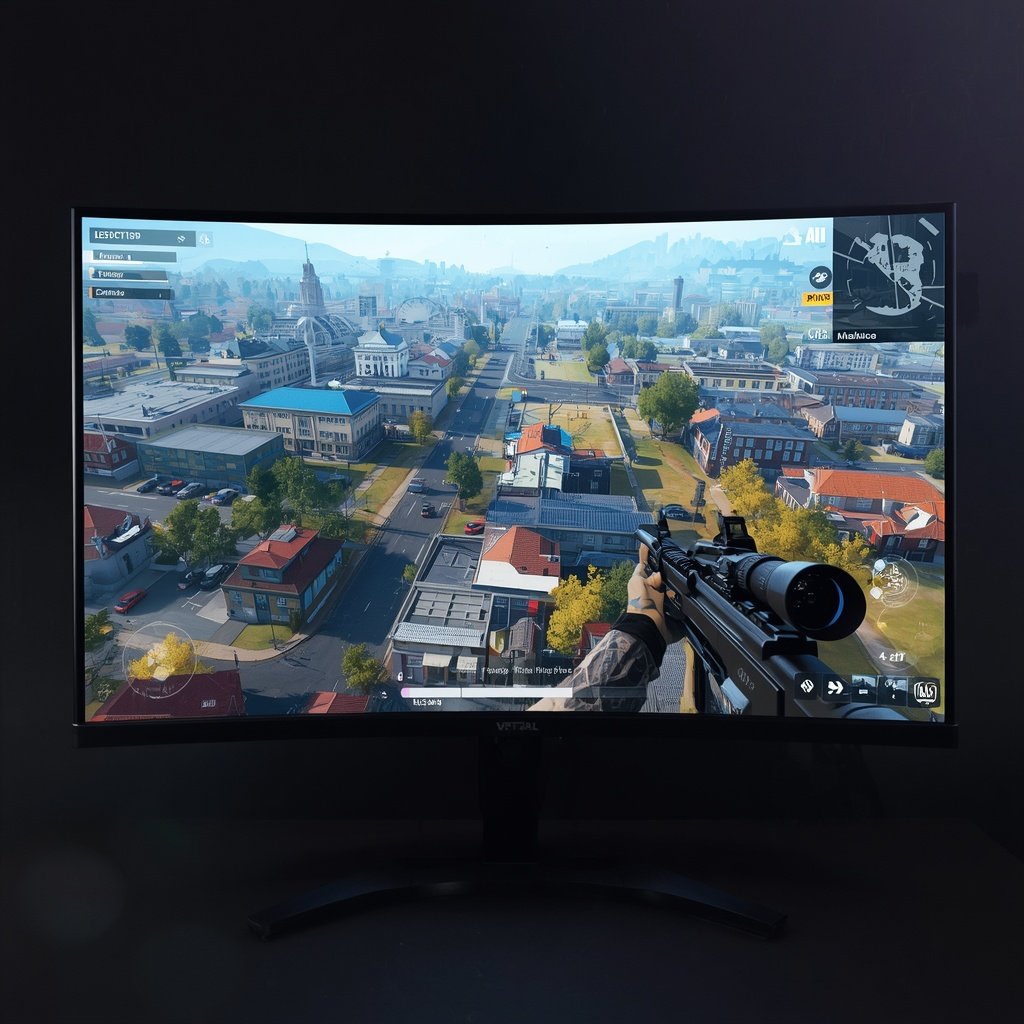
If you already have enough FPS but enemies are difficult to see, use a slightly different approach.
Try:
- Render Resolution: 100
- Texture Resolution: Normal
- Texture Filtering: Normal/High
- Shadow Quality: Low/Normal
- Reflections: Off
- Volumetric Quality: Low
- Motion Blur: Off
- Depth of Field: Off
- Film Grain: 0
- FOV: Around 105–110
- Quality-focused DLSS/FSR rather than aggressive Performance mode
The idea is to remove effects that obscure the image without destroying the texture and detail needed to recognize players.
Recent Warzone community discussions also show that visibility can become a problem after updates, with players reporting blur, grain and difficulty distinguishing enemies.
11. Best Warzone Settings for Low-End PCs
If you are playing on an older GPU or gaming laptop, concentrate on the settings that actually affect performance.
Start with:
Display
- Fullscreen
- Maximum refresh rate
- V-Sync Off
Rendering
- Render Resolution: 100 if possible
- Use FSR/DLSS if supported
- VRAM Scale Target: around 70–80%
- Dynamic Resolution: Off initially
Quality
- Texture Resolution: Low
- Shadow Quality: Low
- Particle Quality: Low
- Volumetric Quality: Low
- Screen Space Reflections: Off
- Screen Space Shadows: Off
- Ray Tracing: Off
View
- FOV: 100–105
- Motion Blur: Off
- Depth of Field: Off
If 100% render resolution is still too demanding, use upscaling before making the image excessively blurry through a very low internal resolution.
A recent community example involving a GTX 1660 Ti showed why DLSS cannot simply be recommended to every player: older GTX hardware does not support DLSS, so alternatives such as FSR or FidelityFX CAS may be necessary.
If you’re not sure what performance to expect from your hardware, use our FPS Calculator to estimate your potential frame rate before changing your settings
12. Best Warzone Settings for 1440p
At 1440p, you have more pixels to render, so GPU performance becomes increasingly important.
A good starting profile is:
- Render Resolution: 100
- Texture Resolution: Normal
- Shadows: Low/Normal
- Reflections: Off
- Volumetrics: Low
- Particles: Low
- Motion Blur: Off
- Depth of Field: Off
- Ray Tracing: Off
- DLSS/FSR: Quality if native FPS is insufficient
- FOV: 105–110
If you own a high-end GPU and still want competitive performance, increase texture quality before turning expensive lighting and shadow effects back on.
13. Best Warzone Settings for 4K
4K changes the priority because the GPU has significantly more pixels to process.
Instead of forcing native 4K at maximum settings, consider a quality-focused upscaling mode.
For a high-end system:
- 4K output resolution
- Quality-focused DLSS/FSR
- Normal/High textures depending on VRAM
- Low/Normal shadows
- Low volumetrics
- Reflections Off
- Ray Tracing Off for competitive play
- Motion Blur Off
- Depth of Field Off
If your goal is cinematic image quality rather than competitive FPS, you can increase shadows, volumetrics and reflections.
14. Why Warzone FPS Drops After an Update
Warzone is continuously updated, so performance can change even when your PC has not changed.
If your FPS suddenly drops after an update, do not assume that buying new hardware or lowering every setting is immediately necessary.
First check:
- Whether your graphics settings were changed.
- Whether your GPU driver is current and compatible.
- Whether shader preloading completed.
- Whether VRAM-related settings changed.
- Whether a new game update introduced a performance issue.
- Whether background applications are consuming CPU, RAM or GPU resources.
Activision specifically says shader preloading is an important part of the first boot process and recommends allowing it to finish before playing. Leaving the main menu during the process can interrupt preloading and contribute to performance problems.
Recent Reddit reports also show players experiencing major FPS changes immediately after updates, including cases where settings were reset or texture-streaming options changed.
15. Do You Need 200+ FPS in Warzone?
Not necessarily.
The ideal FPS target depends on your monitor and hardware.
For example:
- 60Hz monitor → around 60 FPS
- 120Hz monitor → 100–120+ FPS
- 144Hz monitor → around 120–144+ FPS
- 165Hz monitor → around 144–165 FPS
- 240Hz monitor → 180–240 FPS
- 360Hz monitor → very high-end hardware required
A stable 144 FPS can be preferable to a system jumping between 90 and 200 FPS.
Do not judge your setup solely by the maximum FPS number shown in a benchmark. Look at 1% lows, frame-time consistency, temperatures and how the game actually feels during fights.
16. Should You Use Frame Generation in Warzone?
Frame generation can increase the displayed frame rate, but it is not the same thing as increasing the underlying responsiveness of the game.
For a competitive shooter, latency matters.
If your native frame rate is already high, traditional rendering with a stable frame rate may be preferable to using aggressive frame generation simply to make the FPS counter larger.
If you are playing casually and value smoothness more than competitive latency, frame generation can be worth testing on supported hardware.
The important distinction is:
Higher displayed FPS does not automatically mean lower input latency.
17. What If Lowering Graphics Settings Does Not Increase FPS?
This is a common troubleshooting situation.
If you reduce graphics settings from High to Low and your FPS barely changes, your GPU may not be the main bottleneck.
Possible causes include:
- CPU limitation
- CPU thermal throttling
- Background processes
- RAM limitations
- VRAM problems
- Driver issues
- Shader compilation
- Game engine limitations
- An update-related performance problem
Check GPU utilization while playing.
If the GPU is consistently close to full utilization, lowering GPU-heavy settings should generally have more impact.
If GPU usage is relatively low while the CPU is heavily loaded, reducing visual quality may not solve the problem.
18. Warzone PC System Requirements
Before changing dozens of settings, make sure your PC is actually within the game’s supported hardware range.
Activision’s current PC requirements list 8GB RAM and a GTX 970/GTX 1060, RX 470 or Intel Arc A580-class GPU among the minimum specifications, while its recommended 60-FPS configuration lists 12GB RAM and an RTX 3060, RX 6600 XT or Intel Arc B580-class GPU. Activision also lists a higher competitive/Ultra 4K tier requiring substantially more powerful hardware.
Laptop GPUs can behave differently from similarly named desktop GPUs, so do not assume a laptop RTX 3060, for example, will perform exactly like every desktop RTX 3060.
19. The Best Overall Warzone Settings for Most Players
If you do not want to spend an hour testing every option, start here:
Display
- Fullscreen Exclusive
- Highest refresh rate
- V-Sync Off
Rendering
- Render Resolution 100
- Dynamic Resolution Off
- VRAM Scale Target 80%
- DLSS/FSR Quality or Balanced when needed
Textures
- Texture Resolution Normal
- Texture Filter Anisotropic Normal/High
Performance
- Shadows Low/Normal
- Screen Space Shadows Off
- Screen Space Reflections Off
- Particle Quality Low
- Volumetric Quality Low
- Ray Tracing Off
Clarity
- Depth of Field Off
- World Motion Blur Off
- Weapon Motion Blur Off
- Film Grain 0
- FOV 105–110
Latency
- NVIDIA Reflex On + Boost if supported
- Use a sensible FPS cap instead of chasing unstable peaks
This gives you a strong starting point without making the game look unnecessarily blurry or stripped down.
Frequently Asked Questions
What are the best graphics settings for Warzone?
For most PC players, use a custom competitive profile with 100% render resolution, Normal textures, Low or Normal shadows, low effects and volumetrics, disabled motion blur and depth of field, disabled ray tracing, and an appropriate DLSS or FSR mode when native rendering cannot maintain your target FPS.
What is the best graphics setting for Warzone PC?
There is no single setting that is perfect for every PC. A strong general setup is Fullscreen Exclusive, 100% render resolution, Normal textures, Low/Normal shadows, low effects, disabled reflections and ray tracing, and a FOV around 105–110.
How do I get more FPS in Warzone?
Lower shadows, volumetric effects, particles, reflections and other expensive effects first. Keep your render resolution at 100% where possible and use DLSS or FSR when your GPU needs additional performance.
Should I use DLSS in Warzone?
If you have a compatible RTX GPU and need more FPS, DLSS is worth testing. Start with Quality or Balanced rather than immediately choosing Performance. Players without compatible RTX hardware need to use another supported upscaling or sharpening option.
Should I turn V-Sync off in Warzone?
For competitive play, V-Sync is generally best left off because it can add latency. If you use adaptive-sync technology, configure your monitor and GPU settings separately.
What FOV is best for Warzone?
A range around 105–110 FOV is a good starting point for many PC players. Higher FOV increases peripheral awareness but makes distant targets appear smaller.
Why is Warzone suddenly running worse after an update?
Updates can change rendering behavior, reset settings, alter texture-related options, or introduce temporary performance problems. Check your graphics settings, drivers and shader preloading before assuming your hardware is the problem.
Does lowering graphics settings always increase FPS?
No. If your PC is CPU-limited, reducing GPU-heavy settings may produce little improvement. Monitor CPU and GPU utilization to identify the actual bottleneck.
Is 60 FPS enough for Warzone?
60 FPS is playable, but a higher stable frame rate is preferable for competitive play when your monitor and hardware support it. The best target is the highest stable FPS your system can maintain without excessive frame-time fluctuations.
What is the best Warzone setting for visibility?
Start with 100% render resolution, Normal textures, low shadows and volumetrics, disabled motion blur, disabled depth of field, zero film grain and an FOV around 105–110. Avoid overly aggressive upscaling if it makes distant enemies blurry.
Final Verdict
The best Warzone graphics settings are a balance between FPS, visibility and latency, not simply a race to make every option Low.
Start with 100% render resolution, Normal textures, reduced shadows and effects, disabled motion blur and depth of field, no ray tracing, and a sensible DLSS or FSR mode when your GPU needs help. Then adjust only the settings that solve an actual problem on your system.
Most importantly, judge the result by how consistently you can see enemies and aim during real matches—not just by the highest FPS number you can produce in the menu.