
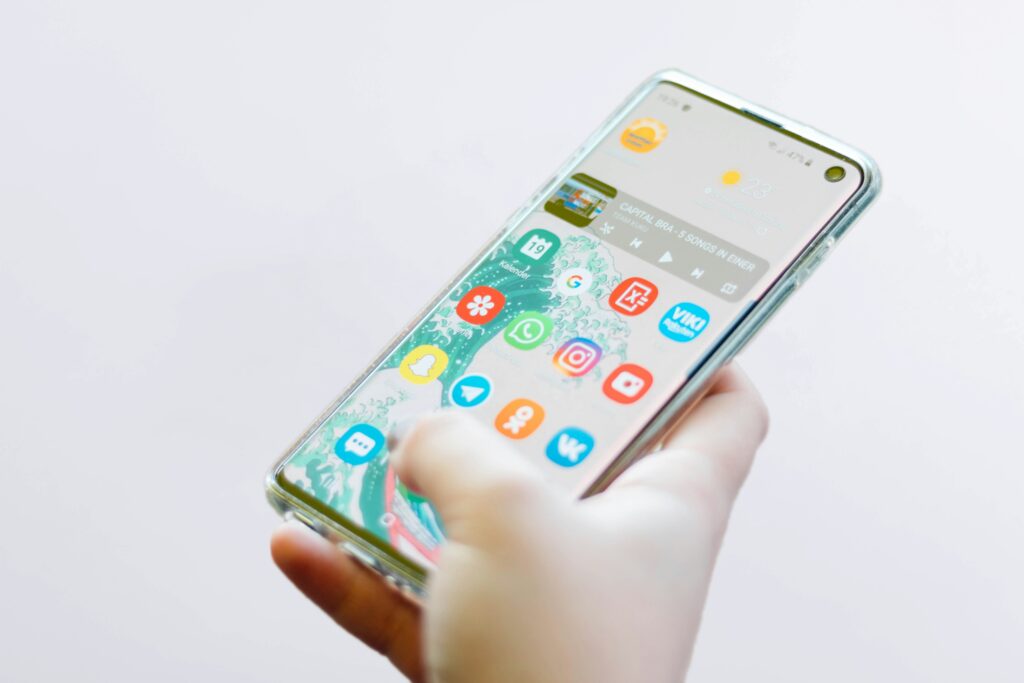
Samsung’s One UI is one of the most feature-rich Android skins available, but that depth means many useful settings and capabilities are buried several menus deep or not immediately obvious to new Galaxy owners. This guide covers the most searched Samsung Galaxy tips and how-to questions — from checking if your phone is unlocked and customizing your home screen with themes and wallpapers, to using Samsung’s APKs, Dual Messenger, and the OEM unlock option for advanced users.
For Samsung Galaxy phone case recommendations to go alongside your phone setup, see our guide to the best Samsung phone cases covering every current Galaxy model.
How to Check if a Samsung Phone is Unlocked
Checking whether a Samsung Galaxy phone is network-unlocked is important when buying a used device, switching carriers, or traveling internationally. There are several reliable methods:
Method 1: Insert a different carrier’s SIM
The most definitive test is inserting a SIM card from a different carrier than the one the phone was purchased with. If the phone displays a network signal and connects normally, it is unlocked. If it shows ‘SIM not supported’ or ‘Enter unlock code’, it is carrier-locked.
Method 2: Check via Samsung’s phone dialer
- Open the phone dialer and enter *#7465625# — this opens the phone lock status screen showing whether SIM lock is active
- On some Samsung models, *#0011# opens the service mode screen which includes carrier lock status
Method 3: Check IMEI status online
Samsung’s IMEI check can be done through Samsung’s official website or through carrier-specific IMEI checkers. The IMEI is found in Settings > About Phone > Status Information > IMEI Information, or by dialing *#06# on the phone dialer.
How to tell if a Samsung phone is unlocked without a SIM
Without a second carrier SIM available, the most reliable method is the phone dialer lock status code above (*#7465625#) or checking Samsung’s IMEI unlock status tool online. On newer Samsung Galaxy models, the Settings > Connections > Mobile Networks menu sometimes shows a ‘Network Lock’ or ‘SIM Lock’ status directly.
Samsung APKs: Call, Camera, Messages, and Video Player
Samsung’s stock apps — Phone (Call), Camera, Messages, and Video Player — are available as APKs that can be sideloaded onto Samsung devices running older Android versions, or onto non-Samsung Android devices that want Samsung’s app experience. Samsung releases these through the Galaxy Store and through Samsung’s official APK distribution channels.
Samsung Call APK
The Samsung Phone app (sometimes called Samsung Call APK) is Samsung’s default phone and calling interface, featuring call screening, call recording on supported regions, spam detection, and the distinctive Samsung dialer UI. The app is pre-installed on all Galaxy phones and updates through the Galaxy Store. Reinstalling or updating the Samsung Phone app on a Galaxy phone where it has been cleared or reverted is done through the Galaxy Store rather than a third-party APK source.
Samsung Camera APK
The Samsung Camera app is one of the most capable stock Android camera apps available and powers all shooting modes on Galaxy phones. Like the Phone app, it updates through the Galaxy Store on Samsung devices. Sideloading Samsung Camera APKs onto non-Samsung devices is technically possible but rarely produces full functionality, since the app relies on Samsung-specific hardware APIs and the Galaxy AI camera processing stack that is not available on third-party hardware.
Samsung Messages APK
The Samsung Messages app supports RCS (Rich Communication Services) messaging, which provides iMessage-style features between Android users — read receipts, high-quality media sharing, and typing indicators — without requiring a third-party app. The Samsung Messages APK is distributed through the Galaxy Store and updates automatically on Galaxy devices. Google Messages is the alternative RCS option and is increasingly the default on newer Samsung models.
Samsung Galaxy Themes
Samsung’s Theme Store (accessible through the Galaxy Store on any Samsung Galaxy phone) offers thousands of free and paid themes that change the entire visual appearance of One UI — icons, fonts, always-on display style, and wallpapers change together as a coordinated package when a theme is applied.
Samsung Galaxy J7 Prime and J5 Themes
The Samsung Galaxy J7 Prime and J5 are older Samsung mid-range phones running Android 8 or lower with Samsung’s older Experience UI (rather than the current One UI). Themes for these devices are available through the Samsung Theme Store app on the phone, though the selection is more limited than current One UI devices. Many themes designed for current One UI are not compatible with the older Experience UI skin on these devices — filtering by compatible model in the Theme Store is the most reliable way to find working themes.
Samsung Galaxy Wallpapers and Home Screen Customization
Samsung Galaxy phones support a wide range of home screen customization beyond standard Android — including changing the grid size, adding icon badges, using Samsung’s Good Lock modules for deep customization, and applying wallpaper packs through the Galaxy Store.
Samsung Galaxy S7 and Note 5 wallpapers
For older Samsung models like the Galaxy S7, S7 Edge, and Note 5 that are running older Android versions, the Galaxy Store and Theme Store may have reduced functionality compared to current models. High-resolution wallpapers for these devices are widely available through Zedge, Wallpaper Engine for Android, and by downloading directly from Samsung’s Wallpaper section in the Galaxy Store where available. The S7’s screen resolution (2560×1440 on the Edge) means standard HD wallpapers scale well without quality loss.
Samsung Galaxy J7 Prime wallpaper download
The Galaxy J7 Prime uses a 1080×1920 Full HD screen. Wallpapers at 1080p or higher resolution work well on this display. Samsung’s default wallpaper pack for the J7 Prime is available through the Theme Store on the device, and Zedge remains the most comprehensive free wallpaper source for older Samsung models where the Galaxy Store selection is more limited.
Samsung One UI Tips: Hidden and Advanced Features
Samsung Dual Messenger
Samsung Dual Messenger allows running two accounts of the same messaging app simultaneously — useful for separating personal and work WhatsApp, Telegram, or Instagram accounts on one phone. To enable: Settings > Advanced Features > Dual Messenger. Select the app you want to duplicate, and a second instance of the app will be installed and accessible from the app drawer with a small badge distinguishing the two.
OEM Unlock on Samsung
The OEM Unlock option in Settings > Developer Options > OEM Unlocking is required before a Samsung Galaxy bootloader can be unlocked for custom ROM installation. Important caveats: enabling OEM Unlock and unlocking the bootloader on a US carrier Samsung Galaxy phone typically triggers Knox warranty flags that are permanent and cannot be reversed. Most Samsung phones purchased through US carriers also have OEM Unlock greyed out for a period after activation (typically 7 days) while the phone checks in with Samsung’s servers.
Samsung Language Core app
Samsung Language Core is a system component that powers text-to-speech and voice input across Samsung’s One UI apps. It is a system app and cannot be uninstalled without root access. Seeing Samsung Language Core in the battery usage or storage list is normal — it is not malware, adware, or a third-party app, and no action is needed.
Carrier Hub on Samsung
The Carrier Hub app on Samsung Galaxy phones is installed by certain US carriers (most commonly T-Mobile) and provides carrier-specific features including Wi-Fi calling configuration, visual voicemail, and carrier message apps. It is a legitimate carrier app, not malware, but can be disabled through Settings > Apps if you do not use the carrier-specific features it provides.
Samsung Customization Service app
Samsung Customization Service is a background system process that delivers carrier-specific customization, app shortcuts, and promotional content when a new Samsung Galaxy phone is set up. It runs primarily during initial device setup and is largely inactive after the first few days. Disabling it through Settings > Apps has minimal practical impact for users who have already completed their initial phone setup.
How to Screenshot on a Samsung Phone or Laptop
Samsung Galaxy phones support multiple screenshot methods. The most universal is pressing the Power button and Volume Down simultaneously. Additional methods available on Samsung Galaxy:
- Palm swipe: swipe the edge of your hand across the screen from right to left (enable in Settings > Advanced Features > Motions and Gestures > Palm Swipe to Capture)
- Bixby Voice: say ‘Hey Bixby, take a screenshot’
- Edge Panel: the Smart Select edge panel includes a screen capture and scroll capture option
For Samsung laptops (Galaxy Book series), the standard Windows screenshot methods apply: Windows + Print Screen saves to the Screenshots folder, and Windows + Shift + S opens the Snipping Tool for partial screenshots.
For Samsung One UI tips and the full Galaxy feature list by model, see the Samsung US support and tips page. For the latest Samsung APK updates via the Galaxy Store, see the Samsung Galaxy Store.
Good Lock: Samsung’s Advanced Customization Platform
Good Lock is Samsung’s official modular customization app, available through the Galaxy Store, that extends One UI customization far beyond what the standard settings menu allows. It is one of Samsung’s most underused features among casual Galaxy users and one of the most valued by power users.
• LockStar module: customizes the lock screen layout, including always-on display widgets and lock screen clock styles beyond One UI defaults
• Home Up module: enables additional home screen layouts, custom icon sizes, and a fully custom app drawer
• One Hand Operation+: redesigns gesture navigation for easier one-handed use on large Galaxy phones
• MultiStar: enhances Multi Window with saved window layouts, pop-up view shortcuts, and custom multi-window splits
Good Lock is available in the US Galaxy Store and is free. The individual modules within Good Lock are also free. Some modules are region-specific and may not be available in all countries.
Samsung DeX: Desktop Mode on Galaxy Phones
Samsung DeX is a feature available on Galaxy S-series, Z Fold, and select Galaxy A-series phones that transforms the phone into a desktop computing experience when connected to a monitor or TV via a USB-C to HDMI cable or wirelessly. In DeX mode, Android apps run in resizable windows on an external display while the phone itself can function as a trackpad.
For Galaxy users who regularly work at a desk, DeX can reduce or eliminate the need for a separate laptop for basic productivity tasks. Google Chrome, Microsoft 365, and Samsung Notes all run well in DeX mode. DeX on Android 13 and later supports running DeX wirelessly to a Samsung TV without any cable — enabling a laptop-like experience from any compatible Samsung TV in the household.
Samsung Galaxy Watch Integration Tips
Samsung Galaxy phones paired with Galaxy Watch unlock features not available on the watch as a standalone device. Keeping Samsung Health, Galaxy Wearable, and the SmartThings apps updated ensures the most complete Galaxy Watch experience, including fall detection notifications, ECG results viewing on the phone, and workout data sync. If your Galaxy Watch is not syncing correctly with your Galaxy phone, the most common fix is clearing the cache of the Galaxy Wearable app through Settings > Apps > Galaxy Wearable > Storage > Clear Cache.
Samsung’s Galaxy ecosystem is among the most feature-rich in Android — the challenge is knowing where these features live within One UI’s many settings layers.
With the tips in this guide covering the most commonly needed how-to answers, you should be able to configure, troubleshoot, and get more out of your Samsung Galaxy phone without spending hours searching individual settings menus.
Related Guides on TechPlayGuide
For more Samsung guides, see our best Samsung phone cases guide.
For more Samsung guides, see our Samsung Galaxy Watch bands and accessories.
Bottom Line
| Check if Samsung is unlocked | Insert different carrier SIM, or dial *#7465625# in the phone dialer |
| Samsung APKs (Call, Camera, Messages) | Update through Samsung Galaxy Store — not third-party APK sites |
| Themes for J7 Prime / J5 | Available in Samsung Theme Store — filter by device for compatible themes |
| Wallpapers (S7, Note 5, J7 Prime) | Galaxy Store, Zedge, or download 1080p+ resolution images directly |
| Dual Messenger | Settings > Advanced Features > Dual Messenger |
| OEM Unlock | Settings > Developer Options — triggers permanent Knox flag on US carrier phones |
| Samsung Language Core | System app — normal background process, not malware |
Frequently Asked Questions
How do I check if my Samsung Galaxy is unlocked?
The fastest way to check if a Samsung Galaxy is unlocked is to insert a SIM card from a different carrier — if the phone connects normally, it is unlocked. Alternatively, dial *#7465625# in the phone dialer to see the SIM lock status screen, or check Samsung’s IMEI status tool online using the IMEI found in Settings > About Phone.
What is the Samsung Call APK?
The Samsung Call APK refers to Samsung’s Phone app — the default calling interface on Galaxy phones featuring spam detection, call recording (on supported regions), and Samsung’s dialer UI. It is pre-installed on all Galaxy phones and updates through the Samsung Galaxy Store rather than requiring a separate APK download.
How do I apply themes on Samsung Galaxy J7 Prime?
Open the Samsung Theme Store app on the Galaxy J7 Prime and filter by compatible device to find themes designed for the Experience UI on older Samsung phones. Current One UI themes are not compatible with the J7 Prime’s older software version. Apply a theme by tapping it in the Theme Store and selecting Apply.
What is Samsung Dual Messenger?
Samsung Dual Messenger is a One UI feature that creates a second instance of a messaging app on your Samsung Galaxy phone, allowing two accounts of the same app to run simultaneously. Enable it through Settings > Advanced Features > Dual Messenger and select the apps you want to duplicate.
What is OEM Unlock on Samsung and should I enable it?
OEM Unlock on a Samsung Galaxy phone allows the bootloader to be unlocked for custom ROM installation. Enabling it on a US carrier Samsung phone typically triggers a permanent Knox security flag that cannot be reversed and may void your warranty. Only enable OEM Unlock if you specifically intend to unlock the bootloader for rooting or custom ROM purposes.