
This guide covers four major Apple tech topics in one place: Apple CarPlay setup and the certified cable requirements, Aston Martin’s Apple CarPlay Ultra integration, connecting Apple TV with HDMI cables, Apple HomeKit news and smart home setup in 2026, and what is new in iOS 26 including the new emoji update. Whether you are setting up CarPlay in a new vehicle, connecting your Apple TV to a display, building a HomeKit smart home, or curious about iOS 26’s new features, this guide covers everything you need to know.
For the complete Apple Pay guide including which stores accept Apple Pay and how to fix Apple Pay issues, see our article on Apple Pay guide — does your store take Apple Pay, sound fix, and scam text guide.
Apple CarPlay — Complete Setup and Guide 2026
What Is Apple CarPlay?
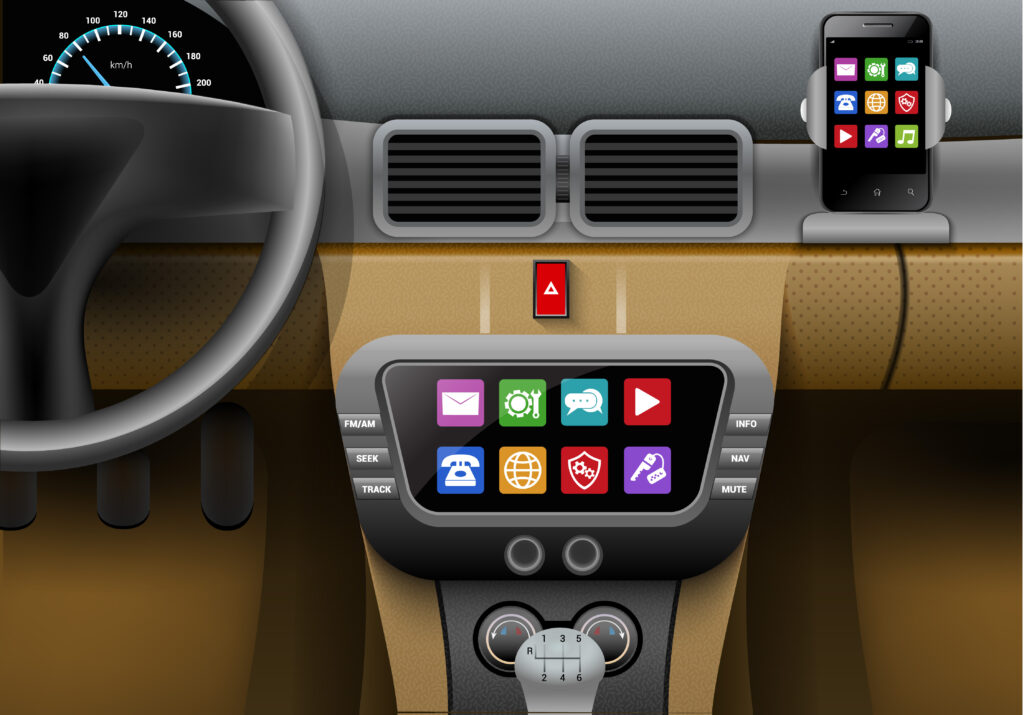
Apple CarPlay is Apple’s in-car iPhone integration system that mirrors your iPhone’s interface on your vehicle’s built-in touchscreen display. CarPlay gives you access to Maps, Phone, Messages, Music, Podcasts, and third-party apps (Waze, Spotify, WhatsApp, and many others) through a simplified, driving-optimized interface controlled by the car’s touchscreen, physical controls, or Siri voice commands.
CarPlay is available in over 800 vehicle models across virtually every major automaker as of 2026. It comes in two formats: wired CarPlay (connects via Lightning or USB-C cable) and wireless CarPlay (connects over Bluetooth and Wi-Fi, available on iPhone 5 or later with iOS 9+, supported by specific head units).
How to Set Up Apple CarPlay
- Wired CarPlay: Connect your iPhone to your vehicle’s USB port using the appropriate cable (Lightning for older iPhones, USB-C for iPhone 15 and later). On first connection, your car’s screen will prompt you to enable CarPlay — tap Allow. CarPlay launches automatically on subsequent connections.
- Wireless CarPlay: In your iPhone, go to Settings → General → CarPlay. Your vehicle should appear in the list of available CarPlay systems when the car is on and Bluetooth is enabled. Select your vehicle to pair. After initial pairing, wireless CarPlay connects automatically when you enter the vehicle.
- Siri must be enabled for CarPlay to function: Settings → Siri & Search → enable ‘Listen for Hey Siri’ and ‘Press Side Button for Siri.’
- Allow CarPlay while locked: Settings → General → CarPlay → enable ‘Allow CarPlay While Locked’ if you want CarPlay to activate without unlocking your iPhone first.
Apple CarPlay Not Working — Common Fixes
- Check your cable: CarPlay requires an Apple-certified (MFi-certified) cable. Non-certified third-party cables frequently cause CarPlay connection issues — see the certified cable section below.
- Restart your iPhone and try again — CarPlay connection failures are often resolved by a simple restart.
- Check your vehicle’s head unit software: Outdated infotainment software can cause CarPlay compatibility issues. Check your manufacturer’s website for head unit updates.
- For wireless CarPlay: ensure Bluetooth and Wi-Fi are both enabled on your iPhone. Wireless CarPlay uses both simultaneously.
- Reset CarPlay pairing: Settings → General → CarPlay → tap your vehicle → Forget This Car, then re-pair from scratch.
Apple CarPlay Certified Cable — Why It Matters
What Is an Apple-Certified CarPlay Cable?
An Apple-certified (MFi-certified) cable for CarPlay is a Lightning-to-USB-A or Lightning-to-USB-C cable that has been officially certified by Apple’s Made for iPhone/iPad/iPod (MFi) program. MFi certification means the cable’s chip and connector meet Apple’s technical specifications for data transfer speed and power delivery — both of which are critical for CarPlay to function correctly.
Why Non-Certified Cables Fail with CarPlay
Non-certified cables are one of the most common causes of CarPlay connection failures. The reasons:
- CarPlay requires sustained data transfer at speeds that cheap non-certified cables often cannot maintain — resulting in dropped connections, lag, or CarPlay failing to launch.
- Non-certified cables may lack the MFi authentication chip that Apple’s system checks before establishing a CarPlay connection — triggering the ‘This accessory is not supported’ error.
- Cheap cables degrade faster and may work initially but fail after a few weeks of daily plugging/unplugging.
Best Apple-Certified Cables for CarPlay
| Cable Type | Use Case | Notes |
| Apple Lightning to USB-A | iPhone 14 and earlier to most car USB ports | Official Apple cable; most reliable |
| Apple Lightning to USB-C | iPhone 14 and earlier to newer USB-C car ports | Required for some 2022+ vehicles |
| Apple USB-C to USB-C | iPhone 15 and later | iPhone 15+ uses USB-C — Lightning cables don’t apply |
| Anker PowerLine MFi | Budget certified alternative | MFi certified; reliable CarPlay performance |
For iPhone 15 and later (which use USB-C), any quality USB-C cable works for CarPlay — the MFi certification requirement was specific to the Lightning connector ecosystem. iPhone 15 and later connect to USB-C car ports directly.
Aston Martin Apple CarPlay Ultra — What Is It?
Aston Martin Apple CarPlay Ultra refers to Aston Martin’s implementation of Apple CarPlay in its vehicles — specifically the enhanced ‘Ultra’ integration available in recent Aston Martin models including the Vantage, DB12, and DBX707.
What Makes Aston Martin’s CarPlay Ultra Different?
Aston Martin has implemented Apple CarPlay with a deeper integration than most automakers — often called ‘CarPlay Ultra’ or extended CarPlay in their marketing. Key features of Aston Martin’s CarPlay implementation:
- Full-screen CarPlay that uses the entire infotainment display without splitting with native controls
- CarPlay extends to the digital instrument cluster in some Aston Martin models — showing navigation directions and relevant data across both the center screen and the driver display
- Aston Martin’s AMi infotainment system works alongside CarPlay rather than competing with it — vehicle-specific controls (climate, drive modes) remain accessible while CarPlay is active
- Wireless CarPlay is standard on current Aston Martin models — no cable required
Apple CarPlay Ultra (Next-Generation CarPlay) Context
Apple announced ‘next-generation CarPlay’ (sometimes referred to as CarPlay Ultra in media coverage) at WWDC 2022, with rollout beginning on select vehicles in 2024-2026. This updated CarPlay goes beyond the center display to control multiple screens in the vehicle — including the instrument cluster — displaying speed, RPM, fuel level, and navigation simultaneously across all screens. Aston Martin, Porsche, and several other premium automakers were among the first to implement this extended CarPlay. As of 2026, next-gen CarPlay is rolling out across more vehicle models from multiple manufacturers.
Apple TV HDMI Cable — Setup Guide
What HDMI Cable Does Apple TV Need?
Apple TV (4K and HD versions) connects to your TV or display via HDMI. Apple TV does not include an HDMI cable in the box — you need to supply your own. The HDMI cable requirements vary by Apple TV model:
| Apple TV Model | HDMI Version Needed | Max Resolution |
| Apple TV 4K (3rd gen, 2022) | HDMI 2.1 for full 4K120Hz; HDMI 2.0 for 4K60Hz | 4K HDR at up to 120Hz |
| Apple TV 4K (2nd gen, 2021) | HDMI 2.0 | 4K HDR at 60Hz |
| Apple TV HD | HDMI 1.4 | 1080p at 60Hz |
How to Connect Apple TV with HDMI
- Connect the HDMI cable to the HDMI port on the back of your Apple TV (the port is labeled)
- Connect the other end to any available HDMI input on your TV or projector
- Power on Apple TV using the included USB-C power cable
- On your TV, switch to the HDMI input you used — Apple TV’s setup screen appears automatically
- For 4K HDR output: ensure you are using an HDMI 2.0 or 2.1 cable and that your TV’s HDMI port supports 4K HDR (check your TV settings — some TVs require enabling ‘Enhanced HDMI’ or ‘HDMI 2.0 mode’ in the TV settings menu)
Apple TV HDMI to USB-C / Apple TV on a Monitor
To connect Apple TV to a monitor or display that only has USB-C or DisplayPort: use an HDMI-to-USB-C adapter (also called a USB-C to HDMI adapter) or an HDMI-to-DisplayPort adapter. Apple TV itself uses HDMI output only — the adapter converts at the display end. Quality active adapters from Anker, Cable Matters, or Club3D handle 4K HDR signal without degradation.
Apple HomeKit — 2026 News and Smart Home Guide
What Is Apple HomeKit?
Apple HomeKit is Apple’s smart home platform that allows you to control compatible smart home devices — lights, locks, thermostats, cameras, doorbells, plugs, blinds, and more — through the Apple Home app on your iPhone, iPad, Mac, or Apple Watch, and through Siri voice commands. HomeKit uses end-to-end encryption for security, which distinguishes it from some competing platforms.
Apple HomeKit News — 2026 Updates
- Matter protocol integration: HomeKit now supports the Matter smart home standard — allowing HomeKit to work with devices certified for Google Home, Amazon Alexa, and SmartThings simultaneously. A Matter device works across all platforms without being locked to one ecosystem.
- Home app redesign: The Apple Home app received a major redesign in iOS 16 and has continued improving through iOS 17, 18, and iOS 26 — with better organization, climate summaries on the home screen, and improved automation controls.
- HomeKit Secure Video expanded: More camera manufacturers now support HomeKit Secure Video — which stores encrypted footage in iCloud without it being accessible to Apple or the camera manufacturer.
- Apple TV as HomeKit hub: An Apple TV 4K (3rd generation or later) serves as a HomeKit hub — enabling remote access to your smart home when you are away and enabling automations to run without your iPhone being present.
HomeKit Compatible Devices — 2026
| Category | Popular HomeKit Compatible Brands |
| Smart Lights | Philips Hue, LIFX, Nanoleaf, Eve Light Strip |
| Smart Locks | Schlage Encode Plus, Level Lock, Aqara |
| Thermostats | ecobee, Honeywell Home T9 |
| Cameras / Doorbells | Arlo, Logitech Circle, Eve Cam, Eufy (some models) |
| Smart Plugs | Eve Energy, Kasa (Matter), Meross |
| Sensors | Eve Door & Window, Aqara motion sensors |
| Blinds / Shades | Lutron Serena, IKEA Fyrtur (Matter) |
How to Set Up HomeKit
- Open the Home app on your iPhone (pre-installed on iOS)
- Tap the + button to add an accessory
- Scan the HomeKit QR code or 8-digit HomeKit setup code on the device or its packaging
- Follow the prompts to name the device and assign it to a room
- For automations: Home app → Automation tab → Create New Automation
iOS 26 — What’s New in 2026
iOS 26 Overview
iOS 26 is Apple’s major iPhone operating system update for 2026, announced at WWDC 2026 and released in fall 2026. iOS 26 continues Apple’s focus on Apple Intelligence (AI features), privacy enhancements, and interface refinements.
iOS 26.4 New Emojis
iOS 26.4 is a point update to iOS 26 that includes new emoji additions as part of the Unicode/Emoji consortium’s latest emoji release cycle. New emojis added in iOS 26.4 include additions from the Emoji 16.1 or later specification — covering new face expressions, objects, food items, and symbol characters. Apple typically releases new emojis in a point update each year following the Unicode consortium’s release schedule.
To see all new emojis on your iPhone after updating to iOS 26.4: open the emoji keyboard in any app, and new emojis appear in the ‘Smileys & People’ and relevant category sections. New emoji additions are also visible in Messages, WhatsApp, and any app that uses the system emoji keyboard.
Key iOS 26 Features
- Apple Intelligence expansions: Additional AI writing tools, enhanced notification summaries, improved image generation capabilities, and deeper Siri integration with third-party apps
- Liquid Glass design language: iOS 26 introduced a refreshed visual design system with translucent, glass-like UI elements across the system — a significant visual shift from iOS 18’s design
- CarPlay improvements: iOS 26 includes further enhancements to next-generation CarPlay integration with supported vehicles
- HomeKit and Home app updates: Improved automation logic, new widget styles, and expanded Matter device support
- Messages updates: Improved message formatting, new reaction options, and RCS enhancements for cross-platform messaging
- Privacy and security: Enhanced tracking protection in Safari, new app privacy reports, and updated App Store privacy requirements
How to Update to iOS 26
- Settings → General → Software Update → download and install iOS 26
- Requires iPhone XS or later for iOS 26 (older models are not supported)
- Apple Intelligence features require iPhone 15 Pro, iPhone 16, or later
- Free update — no cost to upgrade
For the complete Apple Pay guide including does your store accept Apple Pay and Apple Pay troubleshooting, see our article on Does your store take Apple Pay — Ross, Home Depot, McDonald’s, and all major retailers.
For official Apple CarPlay setup instructions and compatible vehicle list, see Apple CarPlay — official vehicle compatibility and setup guide. For the complete list of HomeKit-compatible devices, see the Apple HomeKit compatible accessories directory.
Bottom Line
| CarPlay certified cable | Use MFi-certified Lightning or Apple USB-C — non-certified causes connection failure |
| CarPlay setup | Settings → General → CarPlay (wireless) or plug in certified cable (wired) |
| Aston Martin CarPlay Ultra | Extended CarPlay across instrument cluster + center display; wireless standard |
| Apple TV HDMI | 4K (3rd gen): needs HDMI 2.1 for 120Hz; HDMI 2.0 for 60Hz |
| Apple TV on monitor | Use HDMI-to-USB-C adapter at the display end |
| HomeKit hub | Apple TV 4K (3rd gen+) — enables remote access + automations |
| HomeKit + Matter | HomeKit now works with Matter devices — cross-platform compatible |
| iOS 26.4 emojis | New Unicode emoji batch — update via Settings → General → Software Update |
| iOS 26 requires | iPhone XS or later; Apple Intelligence requires iPhone 15 Pro+ |
Frequently Asked Questions
What cable do I need for Apple CarPlay?
Apple CarPlay requires an Apple-certified (MFi-certified) Lightning-to-USB cable for iPhones 14 and earlier. Non-certified cables are the most common cause of CarPlay connection failures. For iPhone 15 and later (USB-C), any quality USB-C cable works. The official Apple cable is the most reliable option; Anker’s MFi-certified PowerLine series is a well-regarded third-party alternative. Wireless CarPlay requires no cable — it connects over Bluetooth and Wi-Fi.
What is Aston Martin Apple CarPlay Ultra?
Aston Martin Apple CarPlay Ultra refers to Aston Martin’s premium CarPlay integration in its current vehicles (Vantage, DB12, DBX707), which extends CarPlay beyond the center display to include the digital instrument cluster. This is part of Apple’s next-generation CarPlay initiative announced at WWDC 2022, which began rolling out across select premium vehicles in 2024-2026. Wireless CarPlay is standard on current Aston Martin models.
What HDMI cable does Apple TV need?
Apple TV 4K (3rd generation, 2022) needs HDMI 2.1 to output at 4K 120Hz; HDMI 2.0 supports 4K at 60Hz. Apple TV 4K (2nd generation) needs HDMI 2.0 for 4K 60Hz. Apple TV HD (1080p model) works with HDMI 1.4. Apple TV does not include an HDMI cable — purchase separately. To connect to a USB-C monitor, use an HDMI-to-USB-C adapter at the display end.
What is Apple HomeKit in 2026?
Apple HomeKit is Apple’s smart home platform for controlling compatible devices (lights, locks, cameras, thermostats) through the Home app, Siri, and Apple Watch. In 2026, HomeKit supports the Matter standard — allowing Matter-certified devices to work with HomeKit, Google Home, and Amazon Alexa simultaneously. An Apple TV 4K (3rd gen+) acts as the HomeKit hub for remote access and automations when you are away from home.
What is new in iOS 26?
iOS 26 is Apple’s 2026 iPhone OS update featuring: the Liquid Glass visual design language (translucent UI elements), expanded Apple Intelligence AI features, next-generation CarPlay improvements, enhanced HomeKit automations, improved Messages with RCS, and privacy enhancements in Safari. iOS 26.4 specifically added new emojis as part of the Unicode consortium’s latest emoji release. Update via Settings → General → Software Update. Requires iPhone XS or later; Apple Intelligence requires iPhone 15 Pro or later.