
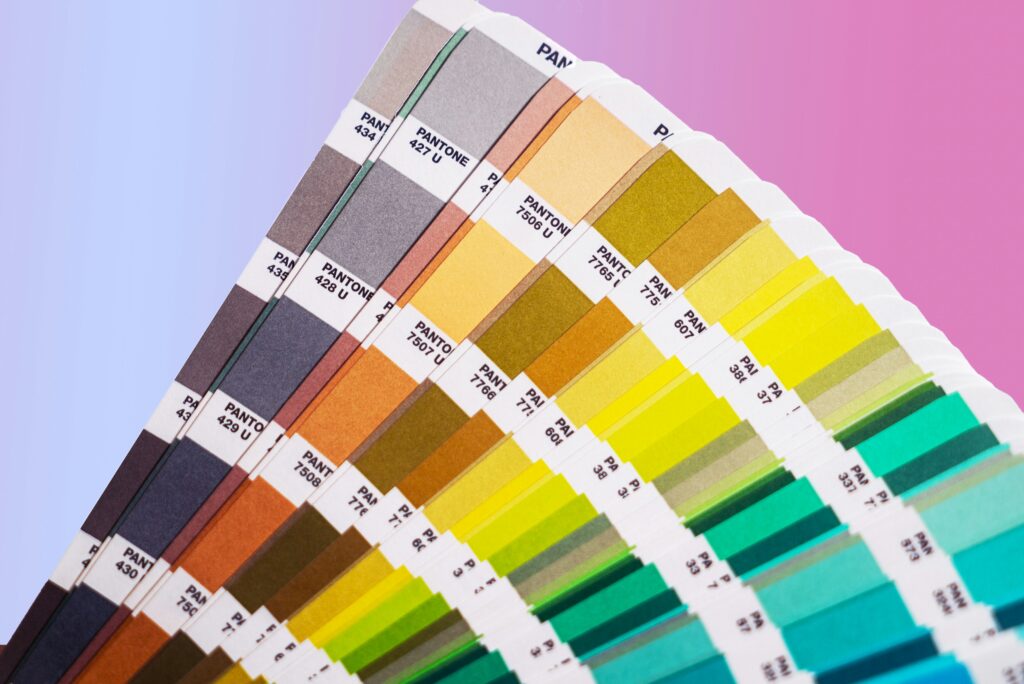
Converting between CMYK and Pantone (PMS) colors is one of the most common tasks in print design — and one of the most misunderstood. Whether you are preparing a logo for professional printing, matching a brand color across different media, or working with a printer who has specified Pantone spot colors, understanding how CMYK and Pantone relate to each other (and their important limitations) is essential for getting predictable printed results.
This guide covers the best free online CMYK to Pantone converters, how to convert CMYK to Pantone in Illustrator, Photoshop, InDesign, and CorelDraw, and the key things to know about why CMYK to Pantone conversion is never an exact match.
The Critical Thing to Understand: CMYK and Pantone Are Not Directly Equivalent
Before using any converter, it is essential to understand a fundamental limitation: there is no exact mathematical conversion between CMYK and Pantone. They are different color systems produced by different physical processes.
- CMYK (Cyan, Magenta, Yellow, Key/Black) is a subtractive color model used in four-color offset and digital printing. Colors are created by mixing ink percentages on paper.
- Pantone (PMS — Pantone Matching System) is a proprietary standardized color system where each color is a pre-mixed specialty ink produced to exact Pantone specifications. A Pantone color looks the same regardless of the printer, paper, or press — that consistency is the entire point of the system.
When you ‘convert’ CMYK to Pantone, you are finding the closest Pantone color to a given CMYK value — not a precise equivalent. The closest Pantone match may differ visibly from the original CMYK color when printed. This is especially true for vivid colors (bright blues, oranges, and greens) that fall outside the CMYK color gamut but within the Pantone range.
With that important caveat stated, the closest-match conversion is still useful for specifying approximate Pantone colors for printing and for communicating color intent across different printing processes.
Best Free Online CMYK to Pantone Converters
1. Pantone Official Color Finder — Most Accurate Reference
URL: https://www.pantone.com/color-finder
The Pantone official website includes a color finder tool that allows searching by color value to find the closest Pantone match. While it does not accept direct CMYK input for conversion, it is the most authoritative source for verifying Pantone color equivalents because it uses Pantone’s own CMYK approximation values — the values Pantone itself publishes as closest matches for each PMS color.
Use this as the final verification step after finding a candidate Pantone color through another tool.
2. Colordesigner.io — Best Free Online CMYK to Pantone Converter
URL: https://colordesigner.io/convert/cmyktopantone
Colordesigner.io is the most practical free online tool for direct CMYK to Pantone conversion. Enter your CMYK values (0–100 for each channel) and the tool returns the closest Pantone PMS color match with the delta (color difference) value indicating how close the match is. It supports Pantone Coated, Uncoated, and TPX (textile) libraries.
- Input: Enter C, M, Y, K values (0–100)
- Output: Closest Pantone PMS number with delta value
- Libraries: Coated (C), Uncoated (U), TPX textile colors
3. Adobe Color — CMYK to Pantone via HEX
URL: https://color.adobe.com/create/color-wheel
Adobe Color allows color input in multiple formats and can display Pantone equivalents when used with an Adobe Creative Cloud subscription. The free version allows color exploration and hex conversion; the Pantone library access requires a Creative Cloud plan. Useful as part of an Adobe workflow.
4. Other Reliable Free Online Converters
| Tool | Type | Best For |
| colordesigner.io/convert/cmyktopantone | Free online | Direct CMYK to Pantone with delta value |
| www.pantone.com/color-finder | Official Pantone | Final verification; authoritative reference |
| color.adobe.com | Adobe (CC for Pantone) | Adobe workflow integration |
| www.colorbook.io | Free online | CMYK, HEX, RGB, Pantone conversion |
| rgb.to/pantone | Free online | Quick lookup; supports CMYK input via RGB |
How to Convert CMYK to Pantone in Adobe Illustrator
Adobe Illustrator has built-in Pantone library access and is the most reliable way to convert CMYK to Pantone within a professional design workflow. Note: Pantone library access in Illustrator requires an active Adobe Creative Cloud subscription (Pantone Connect).
Method 1: Recolor Artwork (Illustrator CC)
- Select the object containing the CMYK color you want to convert
- Go to Edit > Edit Colors > Recolor Artwork (or click the Recolor icon in the Properties panel)
- In the Recolor Artwork dialog, click the color swatch you want to convert
- In the color picker that opens, click the color libraries icon (book icon)
- Select Pantone from the library list — choose Pantone+ Solid Coated, Pantone+ Solid Uncoated, or another appropriate library
- Illustrator will highlight the closest Pantone match — select it and click OK
Method 2: Swatches Panel (Illustrator)
- Open the Swatches panel (Window > Swatches)
- Click the panel menu (hamburger icon in the top right) > Open Swatch Library > Color Books
- Select the Pantone library you need (Pantone+ Solid Coated is standard for most print jobs)
- The Pantone library panel opens — use the search field to search for a Pantone color by number, or visually browse for the closest match to your CMYK color
- Click the Pantone swatch to add it to your document swatches
Note: When you apply a Pantone color from the library, Illustrator stores it as a spot color. When printing, ensure your printer setup is configured to handle spot colors correctly — either printing as spot (for Pantone printing) or converting to process CMYK (for four-color printing).
How to Convert CMYK to Pantone in Illustrator 2024/2025
In Illustrator 2024 and 2025, Pantone integration is handled through the Pantone Connect plugin, which requires a separate Pantone Connect subscription (available as a free tier with limited access or paid tier with full library access). The workflow:
- Install Pantone Connect from the Adobe Exchange (Plugins > Browse Plugins > search ‘Pantone Connect’)
- Open Pantone Connect from Window > Extensions > Pantone Connect
- With your CMYK object selected, click ‘Find closest Pantone’ in the Pantone Connect panel
- The panel displays the closest Pantone match with delta value
How to Convert CMYK to Pantone in Photoshop
Photoshop handles Pantone colors differently from Illustrator — Photoshop is primarily a raster image editor and Pantone spot colors in Photoshop are managed through Spot Color channels. This is relevant for packaging design and label printing where Photoshop files with spot color channels are used.
Converting CMYK to Pantone in Photoshop
- Open your CMYK image in Photoshop
- Go to Window > Channels to open the Channels panel
- Click the panel menu > New Spot Channel
- In the New Spot Channel dialog, click the color swatch next to ‘Name’
- In the Color Picker, click ‘Color Libraries’
- Select the Pantone library from the dropdown — Pantone+ Solid Coated for standard print
- Browse or search for the closest Pantone match to your CMYK color
- Click OK — the Pantone color is added as a spot color channel
For a simple color lookup without creating spot channels: use the Color Picker > Color Libraries path to identify the closest Pantone number to a specific color, then use that number as a reference for your print specifications.
How to Convert CMYK to Pantone in Photoshop (Simple Lookup)
- Double-click the foreground color swatch to open the Color Picker
- Enter your CMYK values in the C, M, Y, K fields
- Click ‘Color Libraries’
- Select Pantone+ Solid Coated (or your preferred library) from the Book dropdown
- Photoshop automatically jumps to the closest Pantone color in the library
- Note the Pantone number displayed — this is your closest PMS match
How to Convert Pantone to CMYK in InDesign
InDesign handles Pantone to CMYK conversion through the Swatches panel and ink management. This is commonly needed when a design originally created with Pantone spot colors needs to be converted to CMYK for four-color digital printing.
Converting Pantone Spot Colors to CMYK Process in InDesign
- Go to Window > Color > Swatches to open the Swatches panel
- Identify the Pantone spot color swatch you want to convert
- Double-click the Pantone swatch to open Swatch Options
- Change the Color Type from ‘Spot’ to ‘Process’
- Change the Color Mode to ‘CMYK’
- InDesign will display the CMYK approximation values for the Pantone color
- Click OK — the color is now defined as CMYK process rather than Pantone spot
Note: This method uses InDesign’s internal Pantone-to-CMYK conversion values. For the most accurate conversion, verify the resulting CMYK values against Pantone’s official published CMYK equivalents at pantone.com.
Ink Manager Method (InDesign — for print output)
- Go to Window > Output > Separations Preview
- Open Ink Manager (also accessible via the Separations Preview panel menu)
- In the Ink Manager, find your Pantone spot color ink
- Check the ‘Convert All Spot Colors to Process’ checkbox to convert all spot colors globally for the print output
This method converts spot colors for print output without permanently changing the document swatches — useful when you need a CMYK proof print but want to preserve Pantone specifications in the original file.
How to Convert CMYK to Pantone in CorelDraw
- Select the object with the CMYK fill you want to convert
- Open the Fill dialog (Shift+F11 or Object > Fill > Edit Fill)
- Click the ‘Uniform Fill’ option and select ‘Spot Color’ as the fill type
- In the Color Model dropdown, select Pantone
- CorelDraw will show the Pantone library — browse or enter a Pantone number to find the closest match
- Alternatively, use Edit > Find and Replace > Replace Colors to batch-convert CMYK colors to Pantone equivalents across the document
CMYK to Pantone Conversion: Common Color Reference Chart
The following are commonly used brand and design colors with their approximate CMYK values and closest Pantone equivalents. These are approximations — always verify against Pantone’s official published values and test print before final production.
| Color Description | CMYK (approximate) | Closest Pantone (Coated) | Delta Note |
| Pure red | 0 / 100 / 100 / 0 | Pantone 485 C | Close match on coated stock |
| Bright orange | 0 / 60 / 100 / 0 | Pantone 151 C | Good match; slight variation on uncoated |
| Golden yellow | 0 / 20 / 100 / 0 | Pantone 116 C | Close match; standard yellow |
| Bright green | 75 / 0 / 100 / 0 | Pantone 368 C | Moderate delta; vivid greens are difficult in CMYK |
| Process blue | 100 / 0 / 0 / 0 | Pantone Process Blue C | Specific CMYK-matched Pantone |
| Navy blue | 100 / 80 / 0 / 30 | Pantone 281 C | Common brand navy; close match |
| Dark teal | 100 / 30 / 40 / 10 | Pantone 3155 C | Moderate delta typical for teals |
| Burgundy / wine | 30 / 100 / 60 / 30 | Pantone 209 C | Good match on coated stock |
| Light pink | 0 / 30 / 10 / 0 | Pantone 183 C | Close match for soft pinks |
| Cool grey | 0 / 0 / 0 / 40 | Pantone Cool Gray 7 C | Near-exact for neutral greys |
| Warm tan | 10 / 15 / 30 / 5 | Pantone 7500 C | Close match for warm neutrals |
| Black | 0 / 0 / 0 / 100 | Pantone Process Black C | Exact process equivalent |
Note: Delta values vary by paper stock. Coated paper generally produces closer matches to Pantone Coated (C) colors than uncoated paper produces to Pantone Uncoated (U) colors.
Pantone Coated vs Uncoated: Which Should You Use?
One of the most common sources of confusion in CMYK to Pantone conversion is choosing between Pantone Coated (suffix C) and Pantone Uncoated (suffix U) variants.
| Pantone Coated (C) | Pantone Uncoated (U) | |
| Paper stock | Coated/glossy paper; most commercial print | Uncoated/matte/offset paper; business cards, letterhead |
| Color appearance | More vibrant, saturated | Slightly duller, more muted due to ink absorption |
| CMYK conversion | Closer match to on-screen CMYK colors | CMYK values differ from coated equivalent |
| Use when | Business cards, brochures, packaging, coated paper | Letterhead, envelopes, uncoated book printing |
| Example | Pantone 485 C (bright red) | Pantone 485 U (same red, appears duller on uncoated) |
The same Pantone number with C and U suffixes (e.g., Pantone 485 C and Pantone 485 U) is not the same ink — they are different formulations designed to produce the same visual result on different paper stocks. Always specify the correct suffix for your paper stock.
Why CMYK to Pantone Conversion Is Never Exact: Color Gamut
The CMYK color gamut (the range of colors printable with four process inks) and the Pantone color gamut are different. Some Pantone colors — particularly vivid oranges, bright greens, and certain blues and purples — exist outside the CMYK gamut entirely. This means:
- You cannot accurately reproduce Pantone 806 C (neon pink), Pantone 801 C (process blue), or similar vivid Pantone colors with CMYK inks. The CMYK equivalent will appear noticeably duller.
- Colors within the CMYK gamut (neutral tones, dark colors, standard reds and blues) convert with much smaller deltas — the closest Pantone match will look very similar to the CMYK original in print.
- The delta value provided by conversion tools (measured in Delta E) indicates how far apart two colors are. A Delta E below 2 is generally considered imperceptible; 2–5 is noticeable by trained eyes; above 5 is a clearly visible difference.
For brand colors that must be precisely consistent across multiple print runs, Pantone spot color printing (where the Pantone ink is mixed to exact specification and printed as a fifth or sixth color) is the only way to guarantee consistency. CMYK printing always introduces variability between presses, paper stocks, and print runs.
Frequently Asked Questions
How do I convert CMYK to Pantone?
The most reliable methods are: (1) Use an online converter like colordesigner.io which accepts direct CMYK input and returns the closest Pantone PMS number with a delta value. (2) In Illustrator, use the Swatches panel to open a Pantone library and visually find the closest match. (3) In Photoshop, use the Color Picker > Color Libraries path to identify the closest Pantone to a CMYK value. Remember that CMYK to Pantone conversion is always an approximation — there is no mathematically exact equivalent.
How do I convert CMYK to Pantone in Illustrator?
In Illustrator, go to Window > Swatches > panel menu > Open Swatch Library > Color Books > Pantone+ Solid Coated. This opens the Pantone library. Use the search box to find a Pantone number, or visually browse for the closest match to your CMYK color. In Illustrator 2024/2025, the Pantone Connect plugin provides a ‘Find closest Pantone’ function that automates the match. Apply the Pantone swatch to change the selected object’s color to a Pantone spot color.
How do I convert Pantone to CMYK in InDesign?
In InDesign, open the Swatches panel, double-click the Pantone spot color swatch, and change the Color Type from ‘Spot’ to ‘Process’ and Color Mode to ‘CMYK.’ The CMYK approximation values will be displayed. Alternatively, use the Ink Manager (Window > Output > Separations Preview > Ink Manager) and check ‘Convert All Spot Colors to Process’ to convert Pantone colors to CMYK for print output without permanently modifying the document.
Is there a CMYK to Pantone conversion chart?
Pantone publishes official CMYK equivalents for every Pantone color in their printed fan decks and on the Pantone website’s color finder at pantone.com/color-finder. These are the most authoritative CMYK approximations. Online tools like colordesigner.io and colorbook.io also provide reference charts and direct lookup tools. For brand-critical color matching, always verify against Pantone’s official published values rather than relying solely on third-party converter tools.
Why does my Pantone color look different when printed in CMYK?
CMYK printing cannot reproduce the full range of Pantone colors. Vivid Pantone colors — particularly bright oranges, neon shades, and certain greens and blues — exist outside the CMYK color gamut and will appear noticeably duller when printed with process inks. Additionally, CMYK output varies between printers, paper stocks, and print runs in ways that Pantone spot color printing does not. If consistent color is critical (brand identity, packaging), specify Pantone spot colors for the print job rather than relying on CMYK approximation.
What is the difference between Pantone Coated and Uncoated?
Pantone Coated (suffix C) and Uncoated (suffix U) are different ink formulations designed to produce the same visual result on different paper stocks. Coated Pantone inks are used on glossy or coated paper (brochures, packaging) and produce more vibrant colors. Uncoated Pantone inks are used on matte or uncoated paper (letterhead, envelopes) and produce slightly more muted results due to ink absorption into the paper fibers. Always specify the correct suffix for your paper stock — using a Coated Pantone specification on an uncoated print job will produce an incorrect color result.
Final Thoughts
Converting CMYK to Pantone accurately requires understanding that the conversion is always an approximation — you are finding the closest available Pantone color to a CMYK value, not a mathematical equivalent. For most design work, an online tool like colordesigner.io provides a fast, practical closest-match lookup. For work within Adobe Creative Cloud, the Pantone library access in Illustrator and the Color Libraries path in Photoshop provide the most integrated workflow.
For brand-critical color specifications, always verify your CMYK-to-Pantone conversion against Pantone’s official published equivalents at pantone.com, test print on the intended paper stock before committing to a full print run, and consider specifying Pantone spot colors directly for any print job where color consistency across multiple runs and printers is essential.